

Search Console
Connecting Google Search Console shows how your site performs in Google, right next to your keyword plan. Connecting is free.
Connect
Section titled “Connect”- Open the project’s ⋯ menu and choose Connect Search Console. You can also connect while your first keyword run is working.
- Choose Connect with Google and sign in with the Google account that has your site in Search Console.
- Pick the property for this project and choose Use this property. If one property matches your website, Yahini links it for you.
Only the project owner can connect or change the property. Team members see the linked property.
If Google stops letting Yahini read your data, for example because access was removed in your Google account, choose Reconnect with Google.
The Search Console tab
Section titled “The Search Console tab”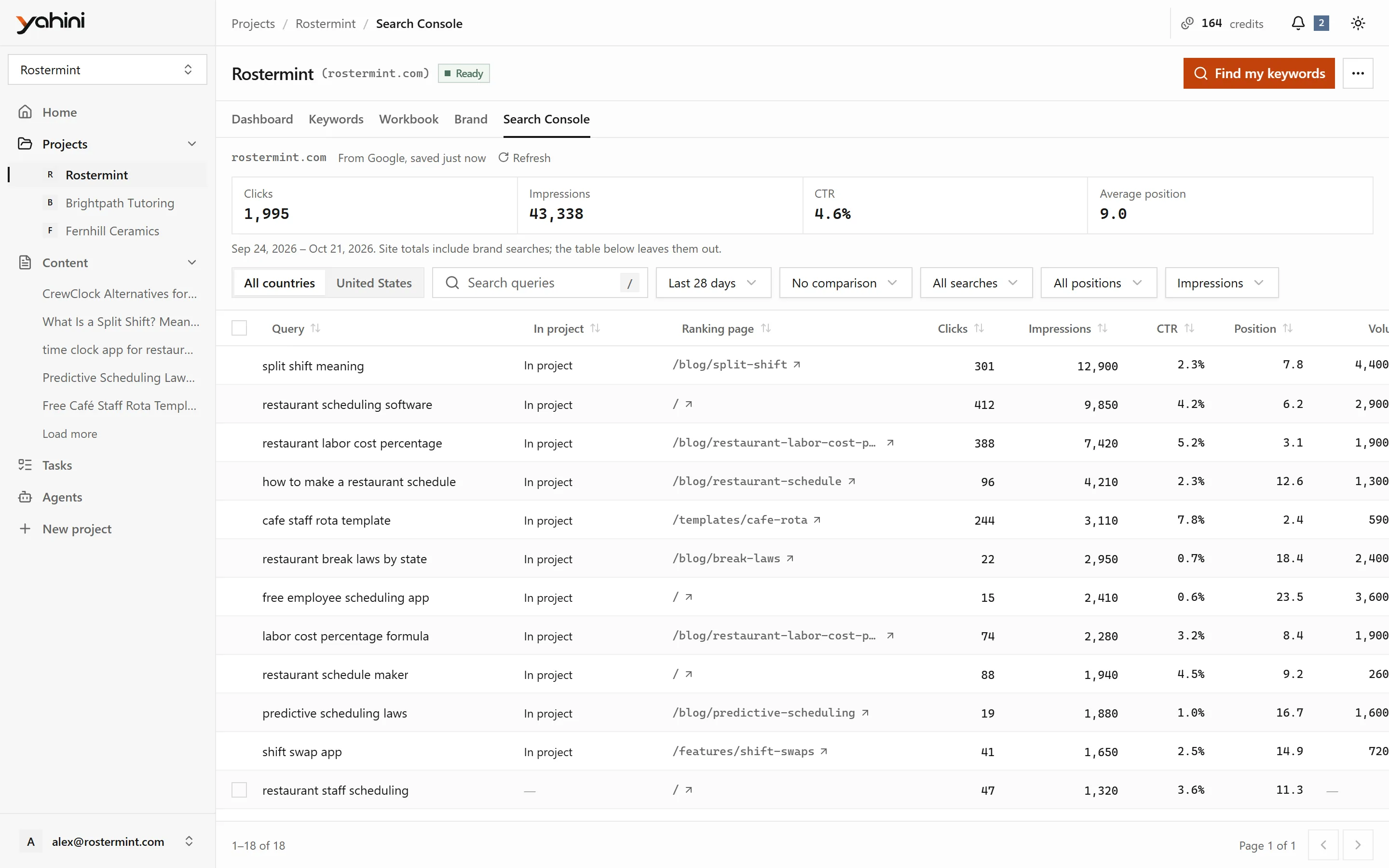
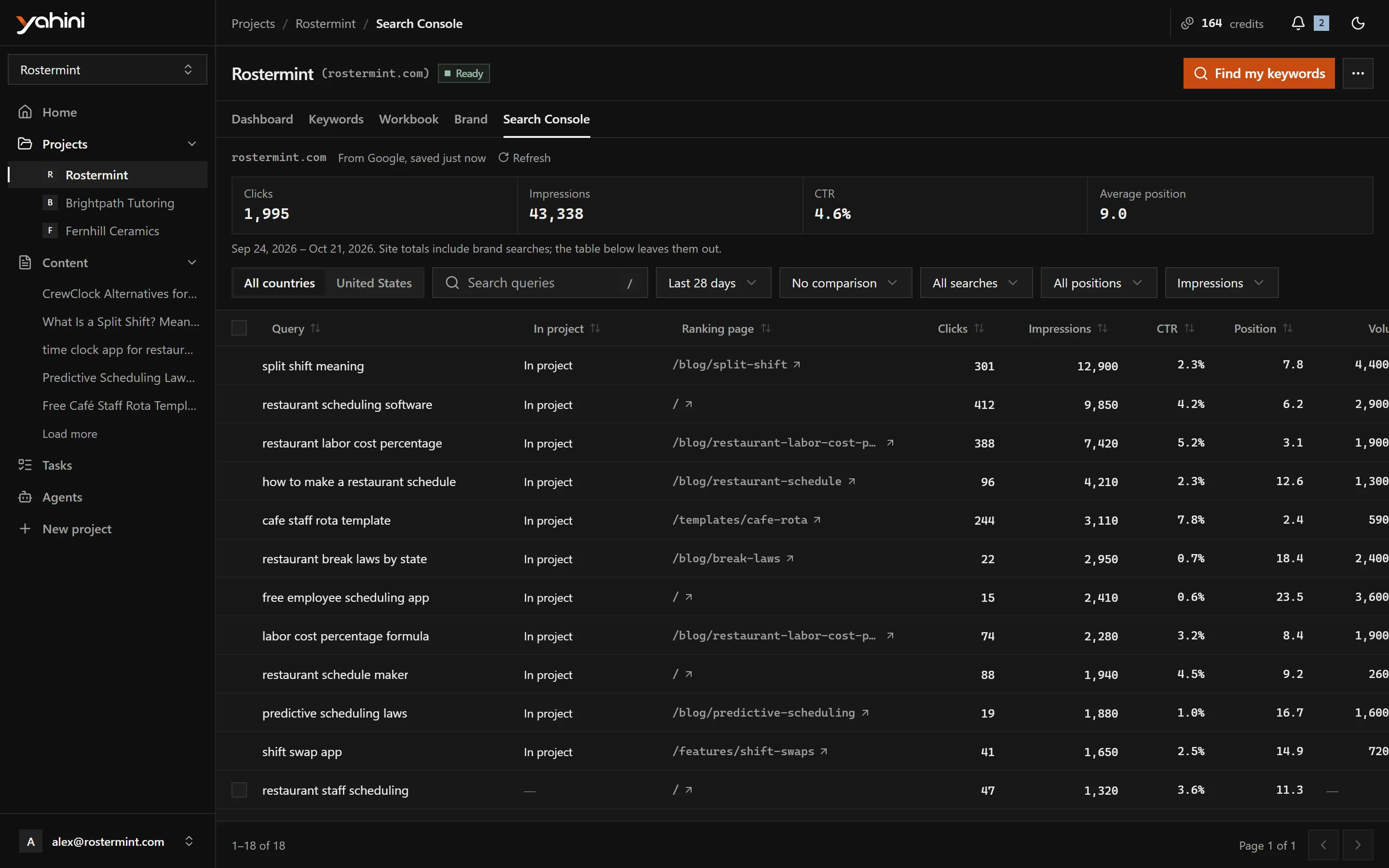
The tab lists the searches your site appeared for, with:
- the ranking page, clicks, impressions, CTR and average position;
- the search volume;
- whether the search is already in the project.
The data comes live from Google and isn’t stored by Yahini.
Filters:
- Date range: last 7 days, 28 days (the default), 3, 6, 12 or 16 months.
- Compare with: no comparison, the previous period or the same period last year. While comparing, you can sort by most clicks gained, most clicks lost or most positions gained.
- Countries: all countries, or only the project’s country.
- Average position: top 3, positions 4–10, page 2 (11–20) or beyond page 2.
- Show: all searches, those not in the project, or those already in it.
Add searches to your project
Section titled “Add searches to your project”- Tick the searches you want to target.
- Choose Add to project.
- Pick a funnel stage for each one, and optionally a priority. Set all applies the same values to every row.
Adding searches is free, up to 200 at a time. Searches already in the project are skipped.
Find my keywords
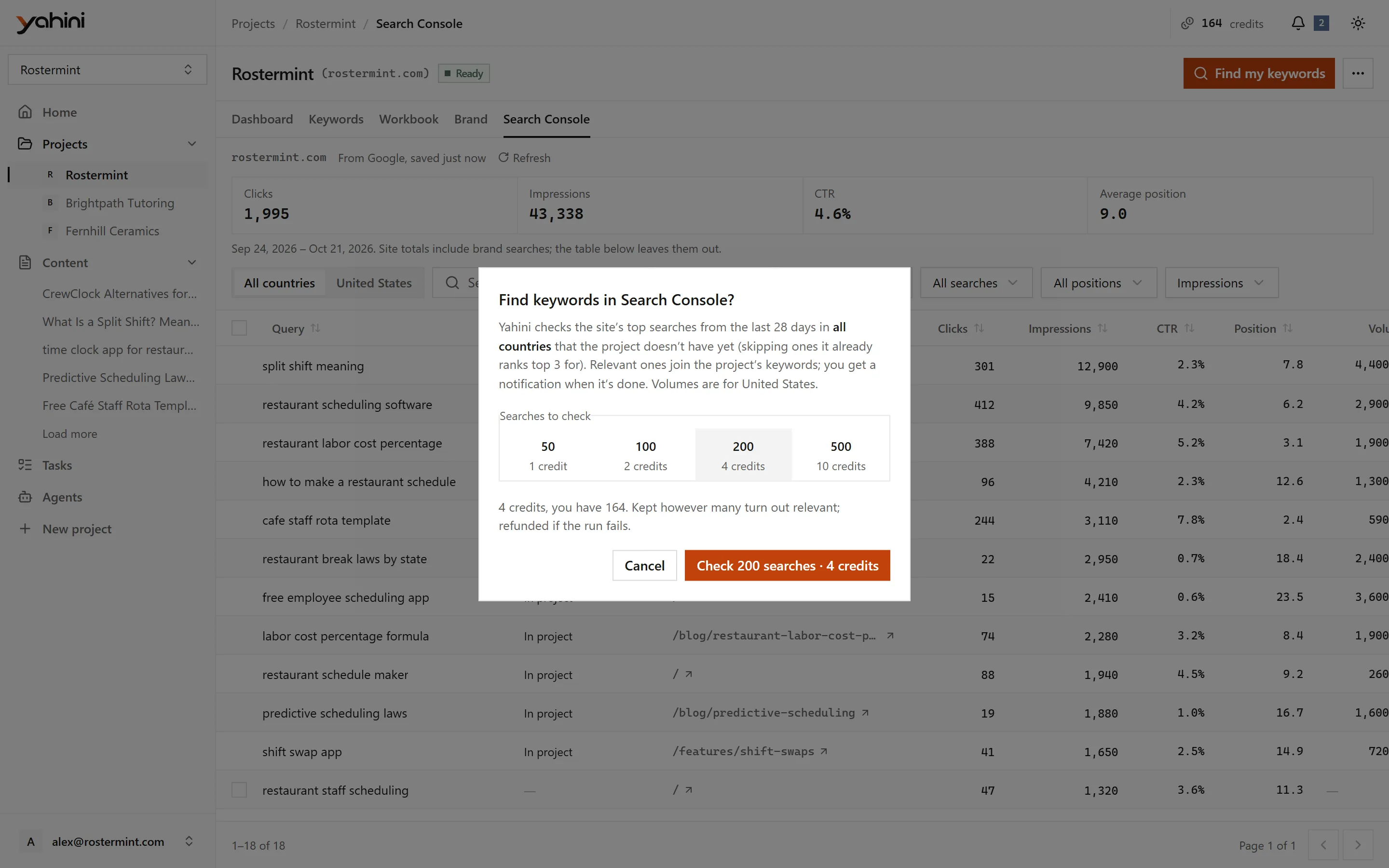
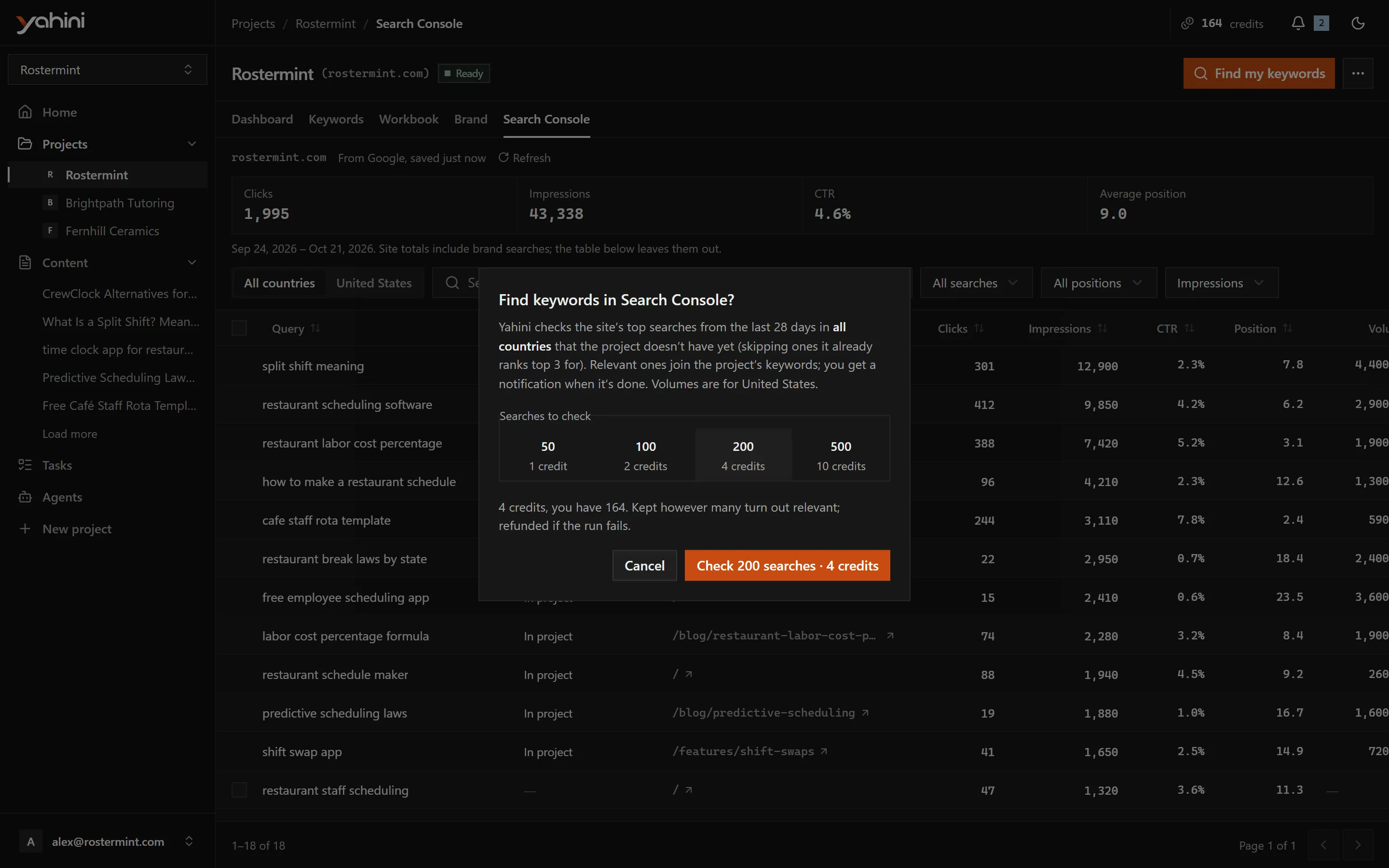
Section titled “Find my keywords”Find my keywords does the picking for you. Choose how many of your top searches to check: 50, 100, 200 or 500. Yahini checks each one and adds those worth targeting to your project. It costs 1 credit per 50 searches checked, and you get a notification when it’s done.
On the dashboard and in tasks
Section titled “On the dashboard and in tasks”Once connected, the project dashboard shows your clicks, impressions, CTR and position against the previous period, and your top movers. Each workbook task shows how its keyword’s searches perform.