

Competitors and topics
All three live in the project’s ⋯ menu. Only the project owner or a team admin or editor can use them, and they wait while an agent is working on the project.
Change a competitor
Section titled “Change a competitor”- Open ⋯ › Competitors.
- Choose Change (or Add for an empty slot), enter the new domain and Save.
Yahini reads the new site, which can take up to a minute. Changing a competitor is free, and each competitor can change once a day.
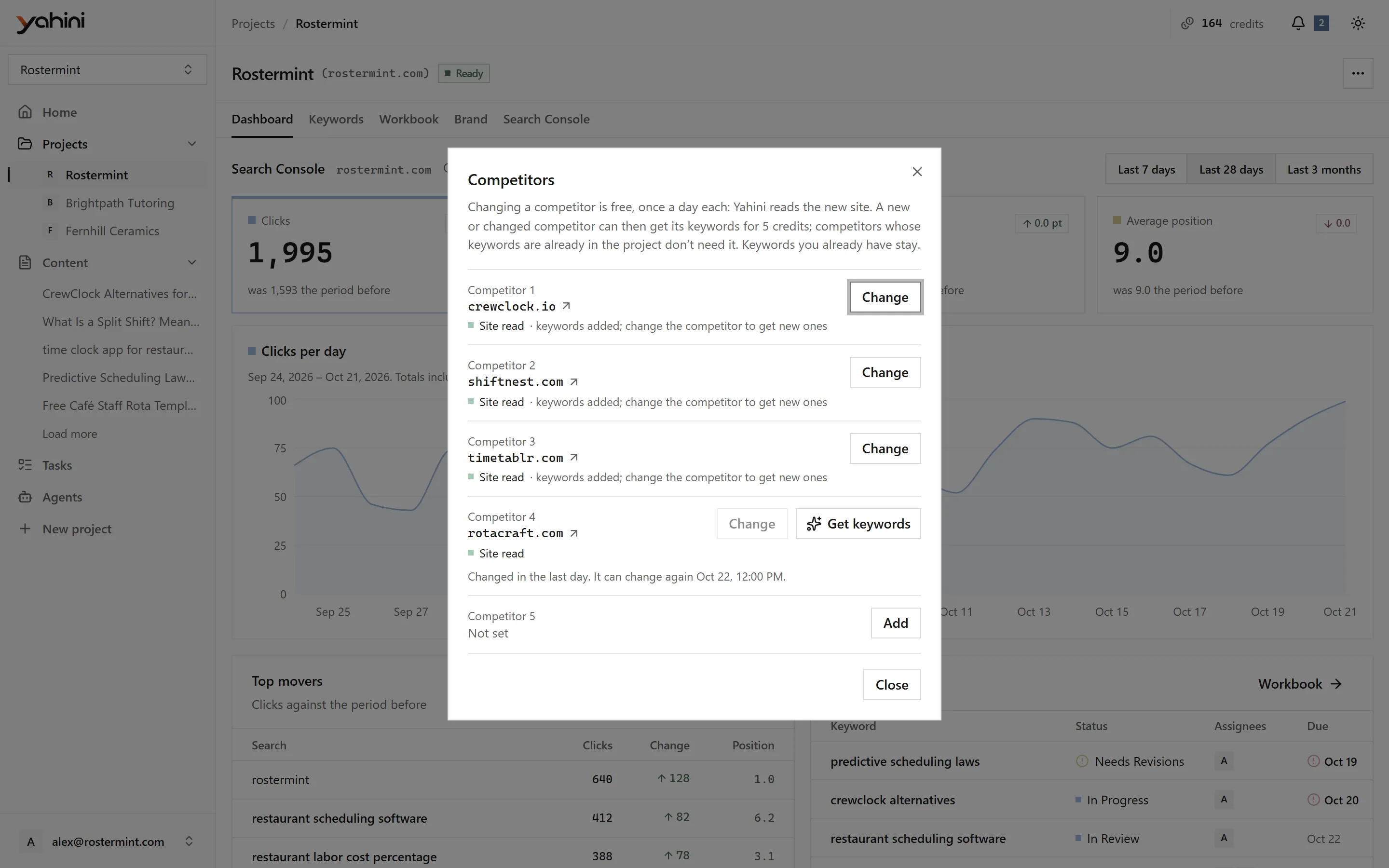
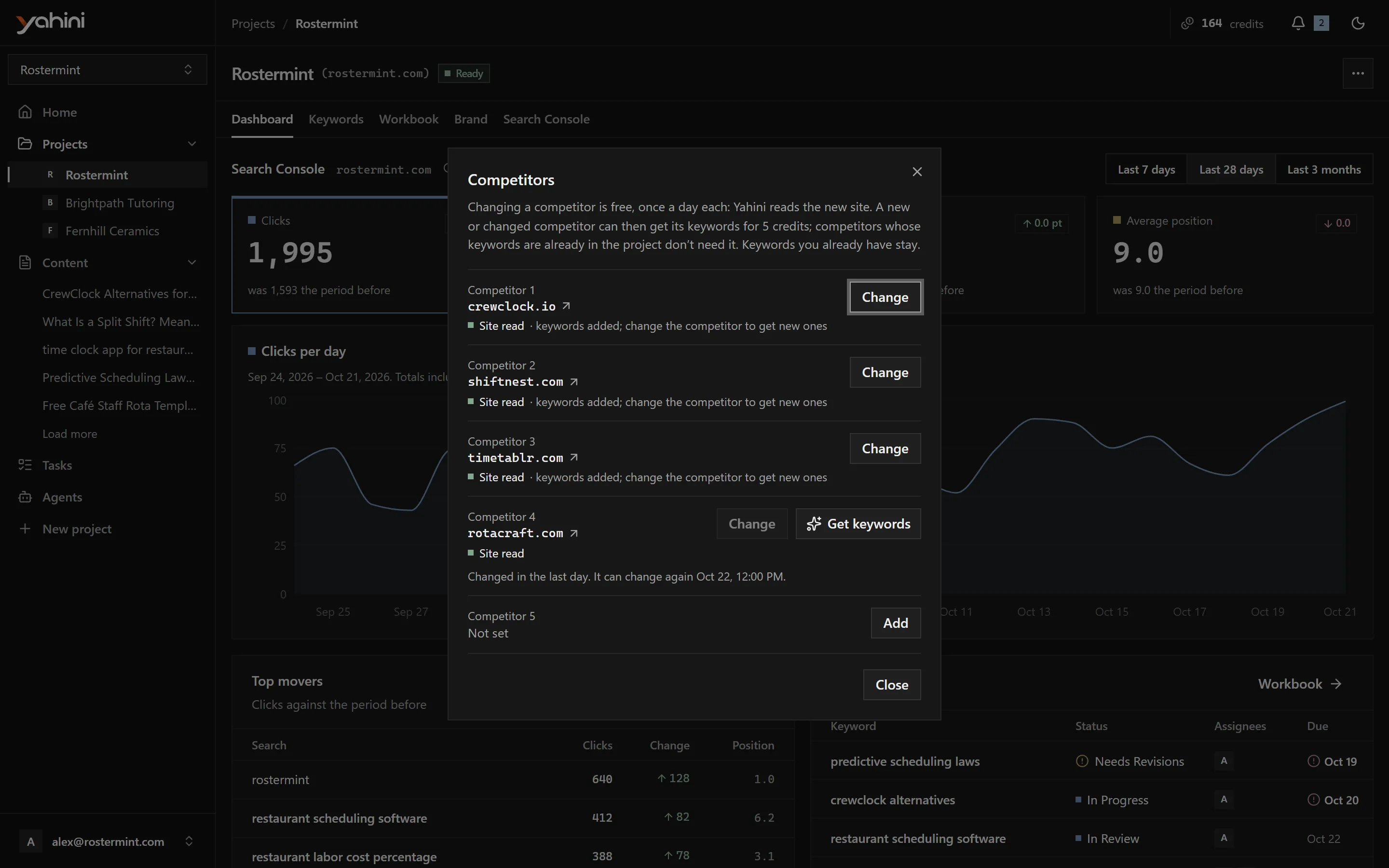
Each competitor shows whether Yahini could read it:
- Site read: ready to use.
- Couldn’t read the site or Site isn’t in English: Yahini has no keywords to offer from it. Try a different competitor.
Get a competitor’s keywords
Section titled “Get a competitor’s keywords”For a competitor you added or changed after the project’s keyword research, choose Get keywords · 5 credits in the Competitors dialog. Yahini finds the searches that competitor gets traffic from and adds the best ones to your project. Nothing you already have is replaced.
Competitors whose keywords are already in the project don’t offer this. Change the competitor to get new ones.
Expand topics
Section titled “Expand topics”Use ⋯ › Expand topics when your keyword list is missing a feature, product line or theme. It costs 10 credits.
- Topic description (required): at least 200 characters, up to 420. The more specific, the better the keywords. For example: “We added a dashboard that helps content teams plan and track SEO projects…”
- Target audience (optional), such as “Content marketing managers”.
- Topic ideas (optional), such as “Content calendar, SEO project management”.
- Reference URL (optional): a page about the topic, such as your feature page.
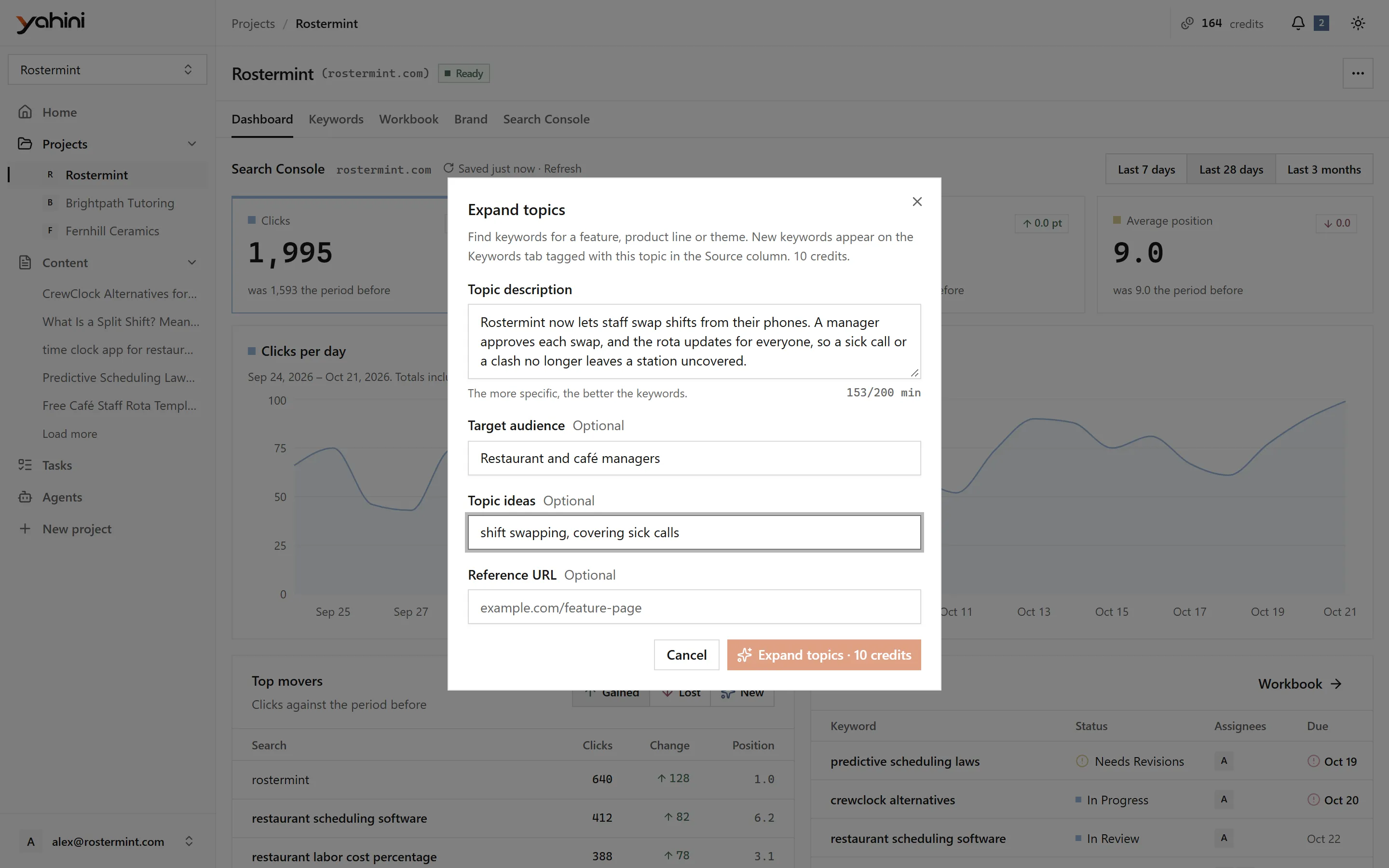
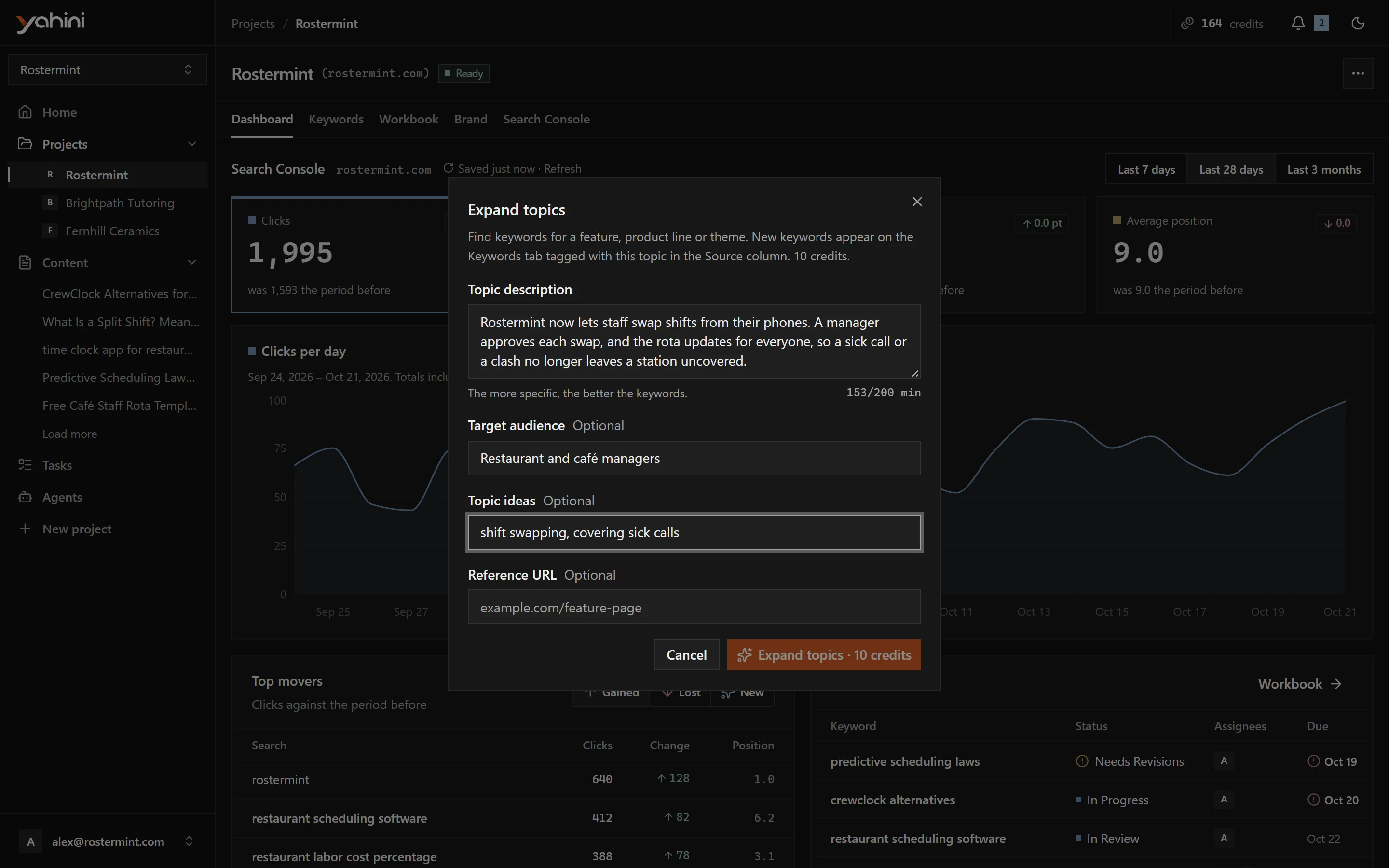
The new keywords appear on the Keywords tab, with the topic shown in the Source column.
Topics and audience
Section titled “Topics and audience”⋯ › Edit topics & audience, or Edit in the dashboard’s Project card, changes the topics and audience you entered when you created the project. They guide future keyword research. Clearing a field removes it.