Expand Topics Agent
The Expand Topics Agent is designed to help you refine and broaden your content strategy by expanding the keywords and topics related to a specific area of interest.
Using it will help Yahini add more relevant topics and keywords to your existing keyword table. This feature makes it easy to keep your content fresh, relevant, and SEO-friendly by expanding your keyword reach based on the latest trends and updates.
Use Cases:
- Introducing New Features: If you've launched something new (like a mobile CRM feature), expanding topics can help you grab keywords that relate to that feature.
- Refining Your Keyword Strategy: Whether you’re targeting a new market or just want to get a little more specific with your keywords, this tool helps you zero in on exactly what you need.
- Expanding into New Markets: If you're reaching new regions or demographics, expanding topics can help you find keywords that are relevant to those areas.
How It Works: Step-by-Step Guide
Step 1: Head to the Keywords Table
First, go to your Keywords section in your Yahini dashboard. This is where you keep track of all the keywords you're working with.
Step 2: Click “Add More Keywords”
You’ll see an option called Expand Topics.
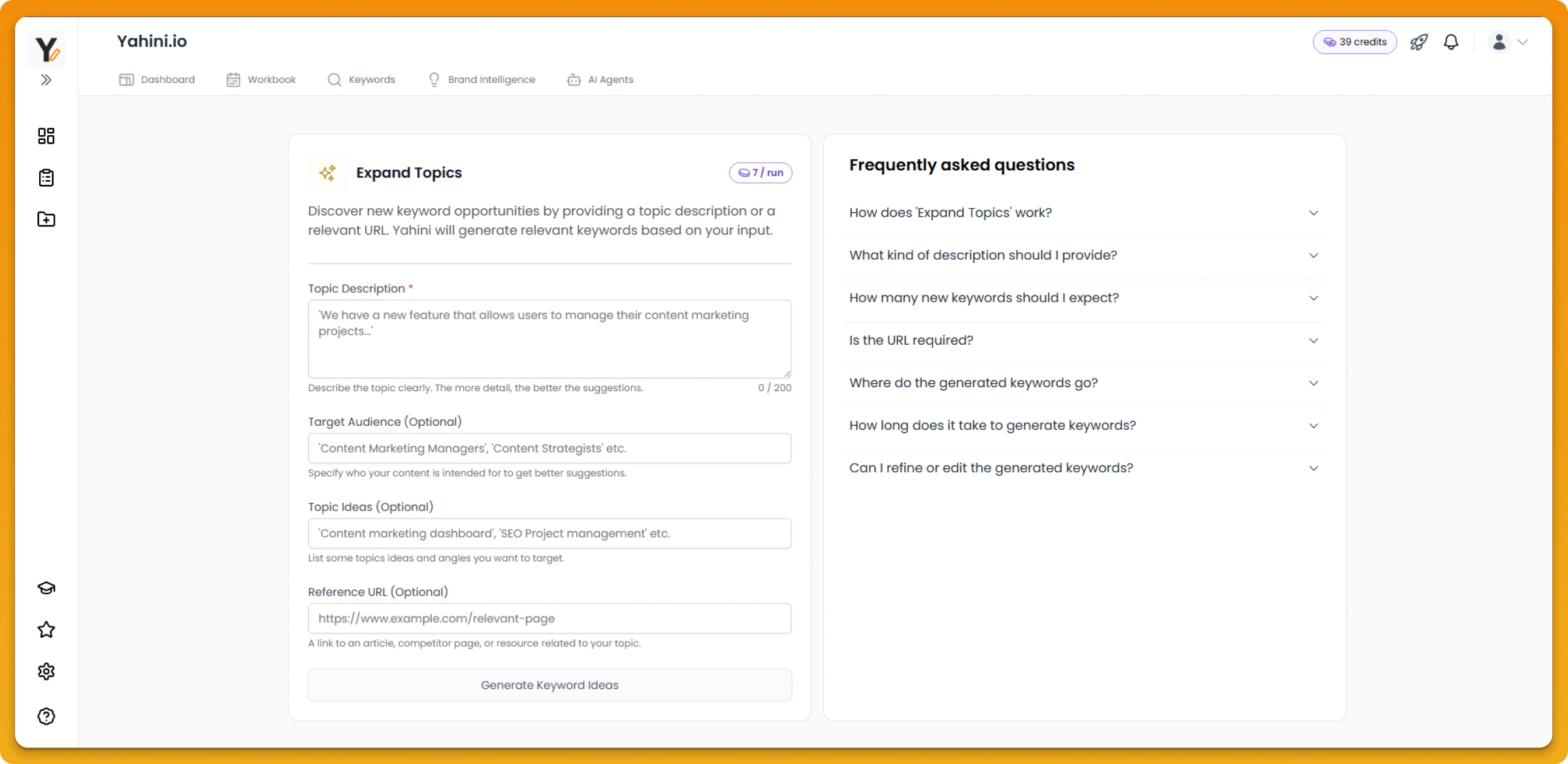
Step 3: Add Context
To get the best keyword suggestions from 'Expand Topics', you need to provide clear context.
- Topic Description (Required): This is the core input. In this field (up to 200 characters), you must describe the specific topic, feature, service, or area you want Yahini to analyze. Be specific! For instance, instead of just "CRM," try "Mobile CRM features for outside sales teams" or "Using AI for content marketing planning." The more detail you give here, the better Yahini understands your goal.
- Target Audience (Optional): Specifying who your content is intended for (e.g., 'Content Strategists', 'Small Business Owners') helps Yahini tailor the keyword suggestions to resonate with that specific group.
- Topic Ideas (Optional): If you already have some specific angles, sub-topics, or related concepts in mind (e.g., 'Content marketing dashboard examples', 'Benefits of SEO project management'), list them here. This gives Yahini additional direction.
- Reference URL (Optional): Providing a relevant URL – like a page on your site describing a new feature, a competitor's article on the topic, or a related resource – allows Yahini to analyze existing content for deeper context and potentially find more nuanced keyword ideas.
While only the 'Topic Description' is mandatory, filling in the optional fields provides valuable extra context that significantly improves the relevance and quality of the keyword suggestions Yahini generates.
Step 4: Review and Confirm
Once you’ve added your context, Yahini will generate new keyword suggestions based on your request.
Note: If your request is really niche and there aren’t any relevant keywords in Yahini’s database, you’ll get a heads-up that no keywords may be added. If that happens, you might need to broaden your request a bit or adjust your topic.
Here are some frequently asked questions about “Expand Topics”:
How many new keywords should I expect?
You can typically expect Yahini to generate at least 20 new keyword suggestions when using 'Expand Topics'.
However, the actual number depends heavily on several factors:
-
The quality and specificity of your description: Clearer, more detailed input can lead to more relevant results.
-
The search demand for your topic/feature: More popular or established topics naturally have more associated keywords.
-
Existing search volume: Yahini generates only keywords with real search data behind them.
Because Yahini relies on real search data, if your topic is very niche, brand new, or currently has very little search volume, you might receive fewer suggestions, or potentially none if relevant keywords aren't found.
Where do the generated keywords go?
Once generated, the new keyword suggestions are automatically added directly into your project's main keyword table.
To help you identify them, these keywords will be marked with a specific custom tag in the "Source" column, related to the topic description you provided for that 'Expand Topics' search. This tagging allows you to easily filter your keyword table later to view only the suggestions from a particular expansion request.
Duplicate keywords that are already in your existing table will not be added.
Does expanding topics use credits?
Generating keywords through topic expansion counts towards your overall keyword or feature usage limits, depending on your subscription plan. Please refer to your plan details for specific credit information.
How long does it take to generate keywords?
Keyword generation typically takes less than a minute, but may vary depending on the complexity of the topic and system load. You'll see a loading indicator while it's processing.
Can I refine or edit the generated keywords?
Yes, once the keywords are added to your project list, you can manage them like any other keyword. You can edit their properties (like Priority or Funnel Stage if applicable), add them to your workbook, or hide them if they aren't relevant.